close

Flexbox element

Last Update: May 27, 2025

Add and delete the element

BERJAYA

To access and use a widget:

  1. In Elementor Editor, click +.
    All available elements are displayed.

  2. Click or drag the element to the canvas. For more information, see Add elements to a page.

To delete the widget:

  1. On the canvas, select the element by clicking it.
  2. Press the delete key on your keyboard. For more information, see Delete elements from a page.

What is Flexbox element?

A Flexbox is a container designed to hold other elements, including other Flexboxes. Flexboxes allow you great flexibility in designing and arranging the content inside. This makes them a great tool for complex, pixel-perfect designs.  

See all the options available with the Rating widget.  

Common use case

Ellis is designing a home page for a salon. They want an eye-catching Hero section to catch visitors’ attention and allow them to book an appointment right from the home page.

BERJAYA

See a video demonstrating the widget in action.

Add a Flexbox element: Step-by-step

  1. Add a Flexbox element to the canvas. For details, see Add elements to a page.
    BERJAYA
  2. In the panel, click the Style tab.
    BERJAYA
  3. Open the Layout section.
    BERJAYA
  4. Set the direction to Row.
    BERJAYA
  5. Add two child Flexboxes inside the first Flexbox.
    The two child containers should be side by side.
    BERJAYA
  6. Select the container on the left by clicking it and click the Style tab.
    BERJAYA
  7. Open the Layout section and set the direction to Column.
    BERJAYA
  8. Open the Size section and set the Min Height to 600 PX and the Min Width to 60%. For details, see Style tab – Size.
    BERJAYA
  9. Open the Background section and add a background color. For details, see Style tab – Background.
    BERJAYA
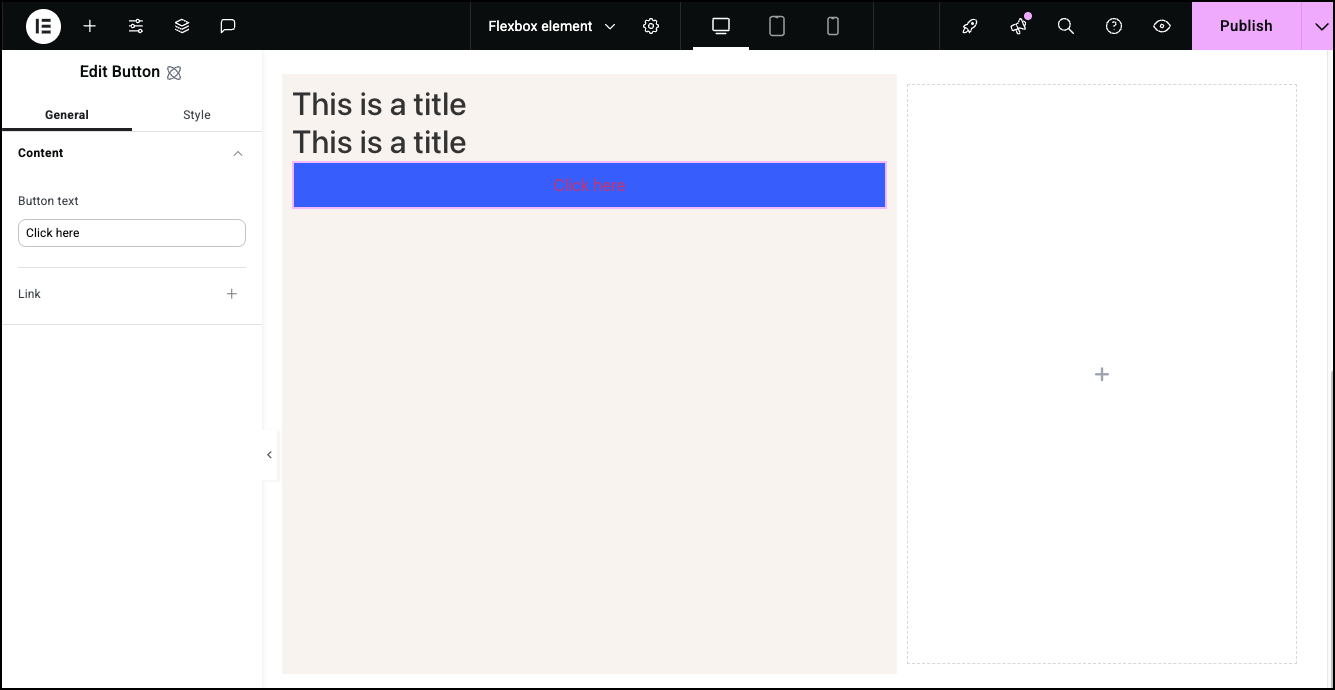
  10. Add two Heading elements and a button. 
    BERJAYA
  11. Add content and styling to the Heading and Button elements. See Heading element and Button element for details. For details on positioning, see Style tab – Spacing, Style tab – Size and Style tab – Position.
  12. Select the Flexbox on the right.
  13. Click the Style tab.
  14. Open the Layout section.
  15. Set the Height to 600 PX and the Width to 40%.
  16. Open the Background section.
    BERJAYA
  17. Add an image as the background. For details, see Style tab – Background.

Settings for the Flexbox Element

You can customize your widgets using content, style, and other advanced parameters, offering you great flexibility in tailoring them to your needs. Click the tabs below to see all the settings available for this widget.

BERJAYA

Choose the HTML tag for your flexbox. Tagging your element correctly helps search engines understand your site and can help SEO.

Choices include:

  • Div
  • Header
  • Section
  • Article
  • Aside
  • Footer.

Click the plus sign to enter a link. Visitors clicking the Flexbox file will open the link. 

Note
If you add a link to a Flexbox, you cannot make any of the elements in the Flexbox clickable.

Open in a new tab: If the Flexbox contains a link, toggle on if you want the link to open in a new tab.

BERJAYA

See the individual articles on Style options:


Have more questions?

Can’t find the answers you’re looking for? We’re more than happy to assist.

Contact support

Related Articles

On this page

Share this article