



Updated October 11, 2017
This article provides a high-level overview of ways to transfer your data to
Cloud Storage,
helps you choose the method that's best for you, and covers best practices for
digital network transfers using the
gsutil
tool.
When you migrate an existing business operation to Google Cloud Platform (GCP), it's often necessary to transfer large amounts of data to Cloud Storage. Cloud Storage is a highly-available and durable object store service with no limitations on the number of files stored in a bucket, however each file has a maximum size limit of 5 TB. Cloud Storage is optimized to work with other GCP services such as BigQuery and Cloud Dataflow, making it easy for you to perform cloud-based data engineering and analysis with a broader GCP architecture.
To make the most of this article, you should be able to give approximate answers to the following questions:
- How much data do you need to transfer?
- Where is your data located? For example, is it in a data center or does it reside with another cloud provider?
- How much network bandwidth is available from the data location?
- Do you need to transfer your data once, or periodically?
Estimating costs
Today, when you move data to Cloud Storage, there are no ingress
traffic charges. The gsutil tool and the
Storage Transfer Service
are both offered at no charge. See the
GCP network pricing page
for the most up-to-date pricing details.
After your data is transferred, you pay for Cloud Storage usage based on storage, network, and operations. You should also consider the cost implications for different storage classes and choose the right storage class for your use case. The Cloud Storage API interface is class-agnostic, allowing the same API access to all storage classes. Refer to Cloud Storage Pricing for details.
Pricing for Transfer Appliance includes usage fee, shipping costs, and possibly late fees. Ingestion from the appliance to Cloud Storage is offered at no charge. After the data is transferred by using Transfer Appliance, you pay normal Cloud Storage usage rates. Refer to the pricing policy for Transfer Appliance for details.
Your data transfer solution might also incur costs external to Google. Such costs include but are not limited to:
- Egress and operation charges by the source provider.
- Third-party service charges for online or offline transfers.
- Third-party network charges.
Selecting the right data transfer method
The following diagram shows each of the methods for transferring data into Cloud Storage.

- The x-axis represents how accessible or "close" the data source is to GCP. In this context, a source with an outstanding internet connection is a small distance away, while a source with no internet connection is distant.
- The Y-axis represents the amount of data to be transferred.
The following diagram helps you navigate the rest of this article and guides your tool selection process.
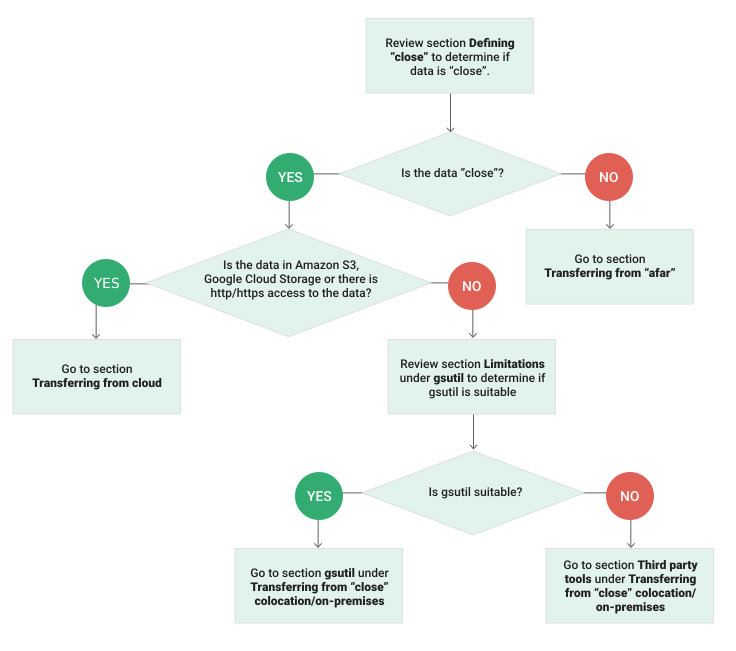
Defining "close"
There is no concrete definition for how "close" your data is to GCP. Ultimately, this is determined by data size, network bandwidth, and the nature of the use case.
The following diagram helps you estimate data transfer time, given the size of the data and your network bandwidth. Always analyze transfer time in the context of a particular use case. It might be unacceptable to transfer one TB of data over the span of three hours in one workflow, but in another workflow it might be acceptable to transfer the same amount of data over 30 hours.

Getting your data closer to GCP
This section discusses ways to improve "closeness", by using the two main levers: data size and network bandwidth.
Decrease data size
You can reduce the size of your data by deduping and compressing it at the
source. Compressing and deduping your data minimizes the amount you need to
transfer over the network, both reducing how long the transfer takes and how
much the storage costs. If your data includes many small files, compressing
and grouping them together with a tool such as tar -cvzf leads to
significantly faster transfers when using gsutil or
Storage Transfer Service.
Compressing data comes with a tradeoff: compression can be CPU- and time-intensive. If you're storing files for archival purposes, consider compressing the files before transferring them to Cloud Storage. If you plan to use transferred files in an app, you might decompress the data in Cloud Storage. In that case, you should transfer the files uncompressed.
As a general guide, compressing text data can result in a 4:1 compression ratio. Lossy compression algorithms for binary and multimedia data, such as JPEG or MP3, are often the best option for reducing their size.
Favor compact file formats where possible, for example, Avro files are inherently compact.
Increase network bandwidth
Methods to increase your network bandwidth depends on how you choose to connect to GCP. You can connect to GCP in three main ways:
- Public internet connection
- Direct peering
- Cloud Interconnect
Connecting with a public internet connection
When you use a public internet connection, network throughput is unpredictable, because you're limited by the Internet Service Provider's (ISP) capacity and routing. The ISP might offer a limited Service Level Agreement (SLA), or none at all. On the other hand, these connections have relatively low costs.
Connecting with Direct Peering
You can use Direct Peering to access the Google network, minimizing network hops. By using this option, you can exchange internet traffic between your network and Google's edge points of presence (PoPs). Doing so reduces the number of hops between your network and Google's network.
Connecting with Cloud Interconnect
Cloud Interconnect offers a direct GCP connection through one of the Cloud Interconnect service providers. This service provides more consistent throughput for large data transfers, and typically includes an SLA for network availability and performance. Contact a service provider directly to learn more.
Transferring data to GCP
You might be transferring data from another cloud service or from an on-premises data center. The transfer method you use depends on how close your data is to GCP. This section discusses the following options:
- Transfer from the cloud: very close
- Transfer from colocation or on-premises storage: close
- Transfer from afar
Transfer from the cloud
If your data source is an Amazon S3 bucket, an HTTP/HTTPS location, or a Cloud Storage bucket, you can use Storage Transfer Service to transfer your data.
Transfer from colocation or on-premises storage
If you operate from a colocation
facility or an on-premises data center which is relatively
"close" to GCP, transfer your data using gsutil
or a third-party tool.
gsutil
The gsutil tool is an open-source command-line utility available for Windows,
Linux, and Mac.
- Multi-threaded/processed: Useful when transferring large number of files.
- Parallel composite uploads: Splits large files, transfers chunks in parallel, and composes at destination.
- Retry: Applies to transient network failures and
HTTP/429and5xxerror codes. - Resumability: Resumes the transfer after an error.
Limitations
The gsutil tool has no built-in support for network throttling. You must pair
it with a tool such as
Trickle
to control traffic at the network layer. If you have privileges at the
operating system level and are confident with low-level fine tuning,
you could improve transfer time by
tuning TCP parameters
and/or
increasing transfer throughput rate.
The gsutil tool is great for one-time transfers or manually initiated
transfers. If you need to establish an ongoing data transfer pipeline, you will
have to run gsutil as a
cron job
or use other workflow management tools such as
Airflow
to orchestrate the work.
Encrypting your data
The gsutil tool encrypts traffic in transit using transport-layer encryption
(HTTPS). Cloud Storage stores data in encrypted form, and lets you use
your own encryption keys. For detailed security recommendations,
refer to security and privacy considerations.
Multi-threading the transfer
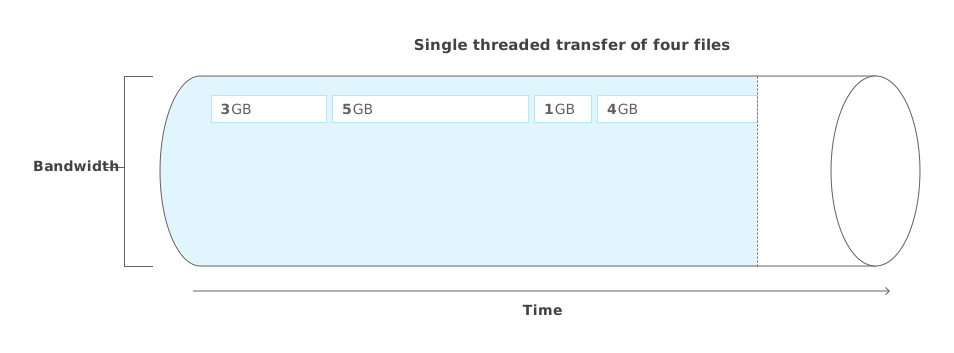
When you use a single-threaded gsutil process to transfer multiple files over
a network, the transfer might not use all the available bandwidth.
The following diagram shows a single-threaded transfer of four files.
Each file must wait for the previous file transfer to complete, wasting
unused bandwidth.
You can use more available bandwidth and speed up the data transfer by copying files in parallel. The following diagram illustrates a multi-threaded transfer of four files.
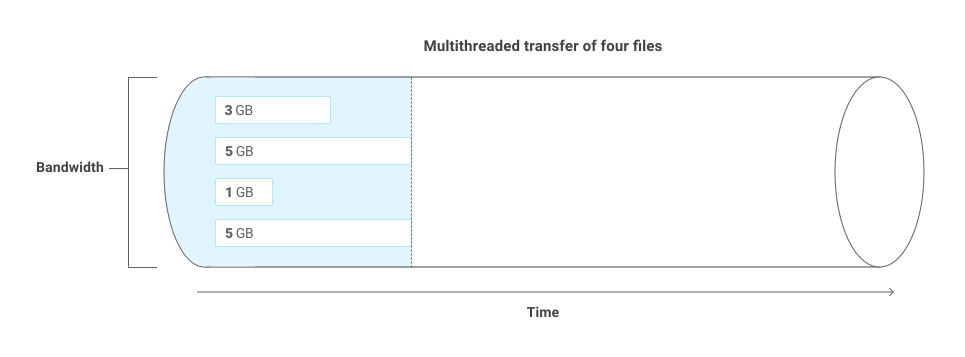
By default, the gsutil tool transfers multiple files using a single thread.
To enable a multi-threaded copy, use the -m flag when executing the
cp command.
The following command copies all files from a source directory into a
Cloud Storage bucket. Replace [SOURCE_DIRECTORY] with your directory,
and [BUCKET_NAME] with your Cloud Storage bucket name.
gsutil -m cp -r [SOURCE_DIRECTORY] gs://[BUCKET_NAME]
Composing parallel uploads
If you plan to upload large files, gsutil offers parallel composite uploads.
This feature splits each file into several smaller components, and uploads the
components in parallel. The following diagrams show the difference between
uploading one large file and uploading the same file using the parallel
composite method.


For details about the benefits and tradeoffs to using parallel composite uploads, visit the cp command documentation.
Tuning TCP parameters
You can improve TCP transfer performance by tuning the following TCP parameters. Before you change these settings, read your operating system's documentation and consult an expert.
TCP Window Scaling (RFC 1323)
This setting allows the TCP window size to surpass 16 bits by using a scaling factor. The setting potentially allows data transfers to use more of the available bandwidth. Both the sender and receiver must support TCP window scaling for this to work.
TCP Timestamps (RFC 1323)
This setting lets the accurate measurement of the round trip time aid in smoother TCP performance.
TCP Selective Acknowledgment (RFC 2018)
This setting indicates that the sender can only re-transmit data that is missing from the receiver.
Send and Receive Buffer Sizes
These settings determine how much data you can send or receive before sending an acknowledgement to the other party. You can try increasing these settings if you believe they are limiting your bandwidth utilization.
Increasing transfer throughput rate
By increasing your effective network bandwidth, you can potentially increase
your data transfer throughput rate. You can test network latency by running the
following
gsutil performance diagnostic tool
command. Replace [BUCKET_NAME] with the name of your
Cloud Storage bucket.
gsutil perfdiag gs://[BUCKET_NAME]
You can use gsutil to experiment with different combinations of
operating system processes, threads, and more. The gsutil tool lets you
better understand the optimal configuration options for your network and
determine, for example, whether you should transfer many small files or a
few large ones.
You can use the following options to help define your network throughput.
- The
-coption sets the number of processes. - The
-koption sets the number of threads per process. - The
-noption sets the number of objects. - The
-soption sets the size of each object. - The
-t wthru_fileoption reads files from the local disk to gauge the local disk's read performance.
For example, the following command uploads 100 files that are 10 MB each, using
2 processes and 10 threads. The command includes the -m option for
multi-threading and the -p option for parallel composite uploads.
Replace [BUCKET_NAME] with the name of your
Cloud Storage bucket.
gsutil perfdiag -c 2 -p both -t wthru_file -s 10M -n 100 -k 10 gs://[BUCKET_NAME]
The following shows sample diagnostic output, including a write throughput value in Mbit per second.
------------------------------------------------------------------------------
                        Write Throughput With File I/O
------------------------------------------------------------------------------
Copied 100 10 MiB file(s) for a total transfer size of 1000 MiB.
Write throughput: 135.15 Mbit/s.
Parallelism strategy: both
To check how many hops are between your network and Google's network, you can
use the traceroute command-line tool with the Autonomous System (AS) number
flag set. The following command functions in a Linux environment:
traceroute -a test.storage-upload.googleapis.com
Look for AS15169, the AS number for most Google services, including GCP. The following sample output shows that it takes 6 hops to enter Google's network.
traceroute to storage.l.googleusercontent.com (74.125.68.128), 64 hops max, 52 byte packets
     1  [AS0] XXXX.XXXXX.XXX (192.168.2.1)  1.374 ms  1.094 ms  0.982 ms
     2  [AS0] XXXX.XXXXX.XXX (192.168.1.1)  1.582 ms  1.932 ms  1.858 ms
       ...
     6  [AS15169] 108.XXX.XXX.XXX (108.XXX.XXX.XXX)  17.281 ms
       ...
For a full list of performance diagnostic tool options, refer to the gsutil tool documentation.
Third-party tools
The gsutil tool is suitable for many workflows. For advanced network-level
optimization or ongoing data transfer
workflows, however, you might want to use more advanced tools.
For information about more advanced tools, visit
Google partners.
The following links highlight some of the many options in alphabetical order:
Aspera On Demand for Google is based on Aspera's patented protocol and suitable for large-scale workflows. It is available on demand as a subscription license model.
Bitspeed offers optimized file transfer protocol suitable for transferring large files or large number of files. These solutions are available as physical and virtual appliances, which you can plug into existing networks and file systems.
Cloud FastPath by Tervela can be used to build a managed data stream into and out of GCP. Refer to Using Cloud FastPath to create data streams for details.
Komprise can be used to analyze data across on-premises storage to identify cold data and move it to Cloud Storage. Refer to Using Komprise to archive cold data to Cloud Storage for details.
Signiant offers Media Shuttle as a Software as a Server (SaaS) solution to transfer any file to/from anywhere. Signiant also offers Flight as an autoscaling utility based on a highly-optimized protocol, and Manager+Agents as an automation tool for large-scale transfers across geographically dispersed locations.
Transferring data from afar
When your data isn't considered "close" to GCP, offline data transfer is the way to go. With offline transfer, you load your data on physical storage media and ship it to an ingestion point with good network connectivity to GCP, and then upload it from there.
Transfer Appliance, as well as a number of third-party service providers, offers various transfer options that you can vet against your requirements and select from. There are two major selection criteria.
- Size of the transfer.
- Dynamic nature of the data.
Transfer Appliance is suitable for large data transfers. However, if you have large amounts of dynamic data, Zadara Storage might be a better option.
Contact your Google representative for assistance in selecting the best option.
What's next
- Data Storage Partners
- Offline Media Import/Export
- Refer to this guide for migrating HDFS data from on-premises to GCP.
- Try out other Google Cloud Platform features for yourself. Have a look at our tutorials.

